Pixelate an image
Pixelate a whole picture, or drag a box over just the part you want blocked out. Set the pixel size, download a PNG — free, and nothing is uploaded.
💜 Donate $5+ and we'll turn off all ads for a year 💜 Ad-free supporter mode — thank you!
ℹ️ Ads keep Pixelateme free — quick tips to get the most out of the site
Pixelateme has no paywall and no account system. The ads you see are what pay for the servers, so everything stays free with no sign-up. A few tips so they never get in your way:
- A sponsor tab or popup may open the first time you click or tap. Just close it and come back — your image is untouched, since everything happens right in your browser.
- The real controls are the ones in the editor above. Anything labeled “sponsored” is an ad, and no feature here ever requires clicking one.
- On ad pages, stay safe: if one claims “your download is ready”, asks you to install software, or requests personal details — just close it. Your finished image saves directly from this page (nothing is ever uploaded), and we never ask for personal info.
- Prefer no ads at all? Donate $5+ and ads switch off for a full year.
Drop an image or video
or browse files · max 15MB
LIVE PREVIEW
Drop a photo of people
or browse files · stays on your device
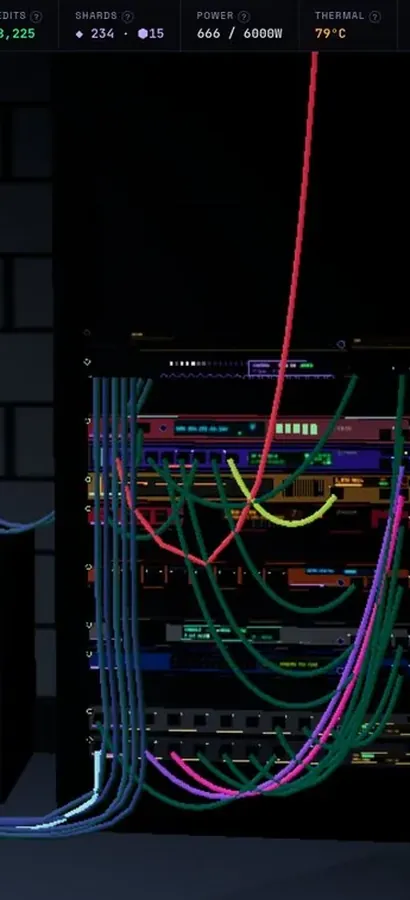
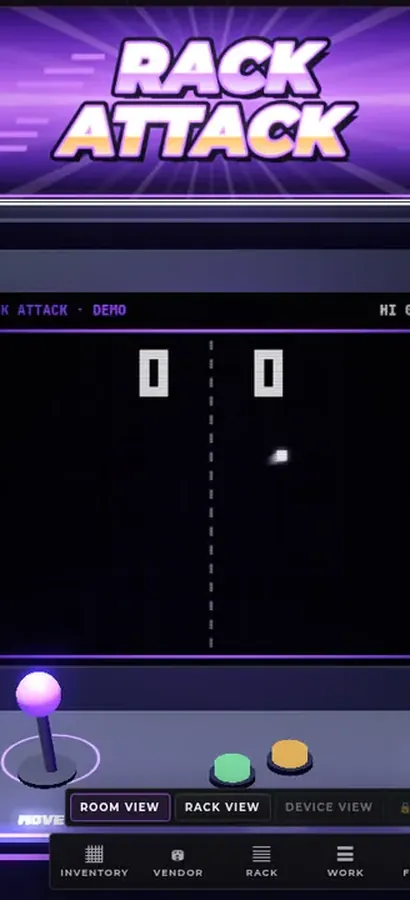
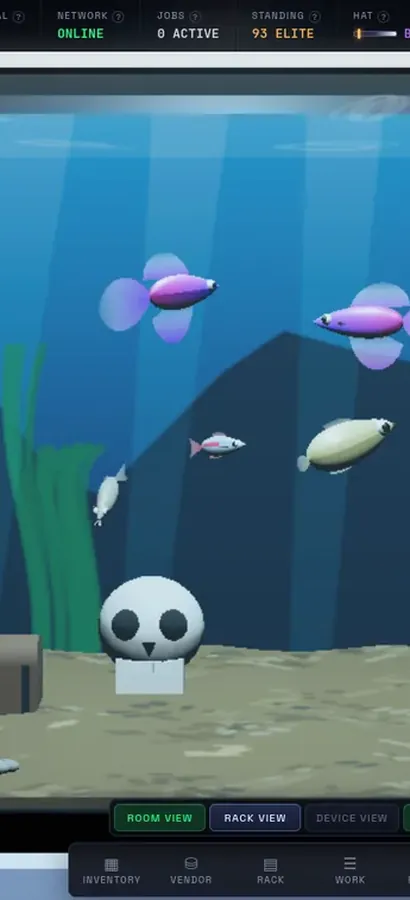
Now in 3D.
Silicon Pirates is a free server-rack simulator you play in your browser, and your lab is a 3D room now. Rack the hardware, run the cables, bring your network online, open every machine at the workbench, mine crypto and keep it all running. Nothing to install.
operator@rack-01:~$ rack status --all ▶ Play Silicon Pirates freeDesktop & mobile · free accountOur own game, not a sponsored ad. What is Silicon Pirates? →
How it works
Upload
Drop in a photo or video — it never leaves your browser.
Pixel Art or Hide Faces
Make retro pixel art, or pixelate faces for privacy.
Tune it
Set pixel size & palette, or auto-detect / draw over faces.
Download
Save your result as PNG (or animated GIF for video).
Why Pixelateme
100% private
Everything runs on your device — no uploads, no accounts.
Hide faces fast
Auto-detect faces or draw boxes to pixelate people & objects.
Retro palettes
Gameboy, NES & CGA looks with optional dithering.
Video → pixel GIF
Turn clips into animated pixel art with adjustable FPS.
Pixelate a whole image, or just one part of it
There are two jobs people mean by “pixelate an image”, and this tool does both.
The whole picture. Drop your image into the box above and drag the Pixel Size slider. Every pixel in the frame grows to the size you pick, which is what you want for a retro or low-res look. The live preview has an Original ↔ Pixel slider so you can see exactly how far you have pushed it before you commit.
Just one region. Switch to the Hide Faces tab and drag a box over the part that needs to disappear — a face, an address, an account number, a screen in the background. Everything outside the box stays perfectly sharp. Add as many boxes as you need, and choose pixelate, blur or a solid black bar for each.
How much pixelation is enough?
If you are pixelating for looks, use your eyes. If you are pixelating to hide something, be more careful than feels necessary:
- Faces: the region should end up roughly 8–12 blocks across at most. If you can still tell where the eyes are, it is not enough.
- Text, numbers, licence plates: do not pixelate them at all — use the black bar. Text has a tiny set of possible values, and light pixelation of a known font can sometimes be worked backwards. A solid bar removes the information instead of scrambling it.
- Whole-image retro look: 24–64px reads as deliberate. Below about 12px it just looks like a bad JPEG.
One more rule that catches people out: pixelate the file you are actually going to share, and share the file you exported. Do not pixelate a small copy and then post the untouched original.
Pixelate an image without Photoshop or GIMP
The usual advice is to open GIMP, select a region, and run Filters → Blur → Pixelise, or in Photoshop to use Filter → Pixelate → Mosaic. Both work, and both mean installing a few hundred megabytes of software, learning a selection tool and exporting through a dialog. If pixelating one picture is the whole job, this page does it in three clicks with the same result — no install, no licence, no account. Desktop editors are still the right answer when the pixelation is one step inside a larger edit.
Formats, sizes and what you get back
Feed it JPEG, PNG, WebP, GIF or anything else your browser can open, up to 15 MB. What comes back is always a PNG, so the hard-edged blocks stay crisp instead of being smeared by JPEG compression — which matters, because JPEG artefacts around a censored area can faintly hint at what was underneath. Feed it a video instead and you will get an animated GIF; that is covered on the pixelate a video page.
Nothing is uploaded — at all
Most free “pixelate image online” sites upload your file, process it on their server and hand you a link. That is a strange bargain when the entire reason you are pixelating is that the image contains something you do not want seen. Pixelateme does the work in your browser with the Canvas API, so the file never leaves your device. There is no server copy to leak, delete or subpoena.
Frequently asked questions
How do I pixelate an image online?
Drop the image into the box above, drag the Pixel Size slider until it looks right, and click Download. The pixelated copy saves as a PNG. Nothing is uploaded — it all happens in your browser.
Can I pixelate just part of an image?
Yes. Switch to the Hide Faces tab, then drag a box over each area you want pixelated. The rest of the picture stays completely sharp, and you can add as many boxes as you like.
How do I pixelate an image without Photoshop or GIMP?
Use this page. GIMP’s Filters → Blur → Pixelise and Photoshop’s Filter → Pixelate → Mosaic do the same thing, but they need an install and a selection tool. If pixelating the picture is the whole task, doing it here is faster and free.
What pixel size should I use?
For a retro look, 24–64px. To genuinely hide a face, make the region no more than about 8–12 blocks wide. For text or numbers, use a black bar instead of pixelation.
Does pixelating really hide the information?
For faces and general detail, heavy pixelation is effectively irreversible. For text — names, account numbers, licence plates — light pixelation of a known font can sometimes be reconstructed, so use the solid black bar option for those instead.
What image formats can I use?
Anything your browser can open — JPEG, PNG, WebP, GIF and more, up to 15 MB. The download is always a PNG so the pixel blocks stay sharp.
Is it free, and is there a watermark?
It is completely free, with no sign-up, no account and no watermark on anything you download.
Can I pixelate several images?
Yes — one at a time. Pixelate and download the first, then drop in the next. Your settings stay where you left them.
People also ask
Can a pixelated image be un-pixelated or reversed?
Not in the sense people usually mean. Pixelation throws the original pixels away, so there is nothing left to restore. What the “unpixelate with AI” tools do is generate a plausible-looking face or texture that would pixelate down to the same blocks — an invention, not a recovery. A widely reported 2020 face-upscaling demo made the point badly and publicly when it turned a pixelated photo of a well-known Black politician into a white man. Treat their output as a guess, never as evidence of what was underneath.
So is heavy pixelation actually safe?
For faces and general detail in a photo you are posting publicly, yes — if you go heavy enough that the region is only a handful of blocks across. Two real caveats, though. Researchers have shown that pixelated faces can often be matched back to the right person when the attacker already has a small set of candidate photos — that is re-identification, not reconstruction, but the outcome is the same. And pixelated text is genuinely recoverable: published tools can reconstruct pixelated screenshot text when the font and rendering are known. For names, numbers, addresses and licence plates, use a solid black bar instead.
Can pixelated text or a licence plate be read back?
Often, yes — which is why it should never be pixelated in the first place. Text is drawn from a small alphabet in a predictable font, so a pixelated block can be compared against every candidate string rendered the same way until one matches. Public tools that do exactly this to screenshots have existed since 2020. Blur has the same weakness. Use Black bar for anything made of characters, and pixelation only for faces, bodies and scenery.
Does pixelating an image reduce its quality or file size?
It destroys detail permanently — that is the point — but the exported file is not necessarily smaller. The pixel dimensions stay the same; only the content becomes blockier. As it happens, large flat areas of a single colour compress very well, so a heavily pixelated PNG often ends up smaller than the original. Keep your untouched original, because you cannot undo it from the export.
My photo went pixelated on its own and I want it fixed — can this help?
No, and it is worth being straight about that: this tool adds pixelation on purpose. If your picture went blocky by itself, the usual causes are a low-resolution original being displayed larger than its real size, a site re-compressing your upload, or generation loss from a file that has been saved and re-uploaded many times. The fix is to go back to the highest-resolution original you have and upload it at the size it will actually be shown — not to run it through an editor.
Do free online pixelate tools upload and keep my photos?
Most of them do — they receive your file, process it on their servers and hand back a link, which means a copy exists on someone else’s machine, usually under terms that let them retain it. That is a poor trade when the reason you are pixelating is that the image shows something private. Pixelateme is built the other way round: the work is done by your own browser with the Canvas API, so nothing is transmitted. If you want to prove it, load this page, switch off your network, and it still works.