Pixelate a video
Drop in a clip and Pixelateme pixelates it frame by frame, then exports an animated pixel GIF. Free, and the video never leaves your browser.
💜 Donate $5+ and we'll turn off all ads for a year 💜 Ad-free supporter mode — thank you!
ℹ️ Ads keep Pixelateme free — quick tips to get the most out of the site
Pixelateme has no paywall and no account system. The ads you see are what pay for the servers, so everything stays free with no sign-up. A few tips so they never get in your way:
- A sponsor tab or popup may open the first time you click or tap. Just close it and come back — your image is untouched, since everything happens right in your browser.
- The real controls are the ones in the editor above. Anything labeled “sponsored” is an ad, and no feature here ever requires clicking one.
- On ad pages, stay safe: if one claims “your download is ready”, asks you to install software, or requests personal details — just close it. Your finished image saves directly from this page (nothing is ever uploaded), and we never ask for personal info.
- Prefer no ads at all? Donate $5+ and ads switch off for a full year.
Drop an image or video
or browse files · max 15MB
LIVE PREVIEW
Drop a photo of people
or browse files · stays on your device
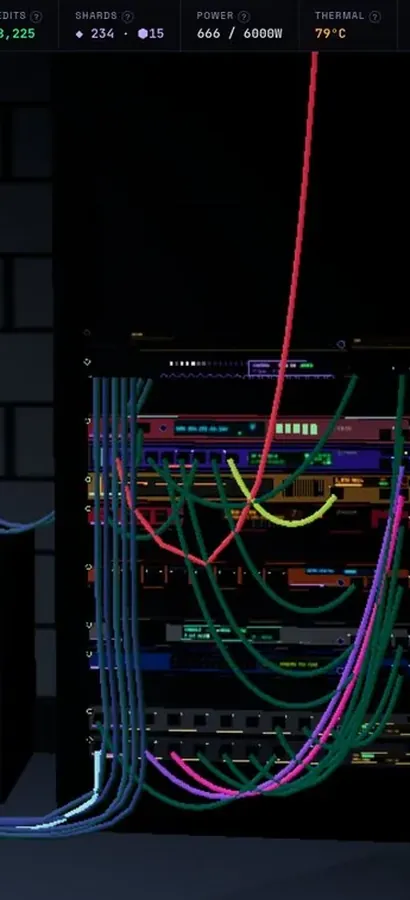
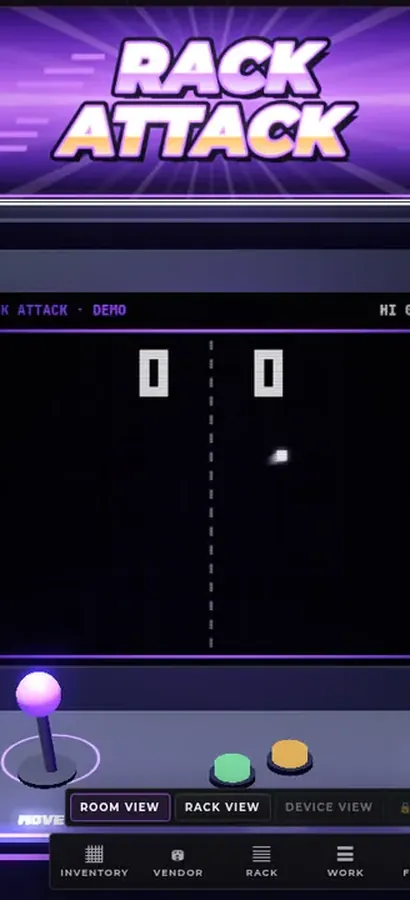
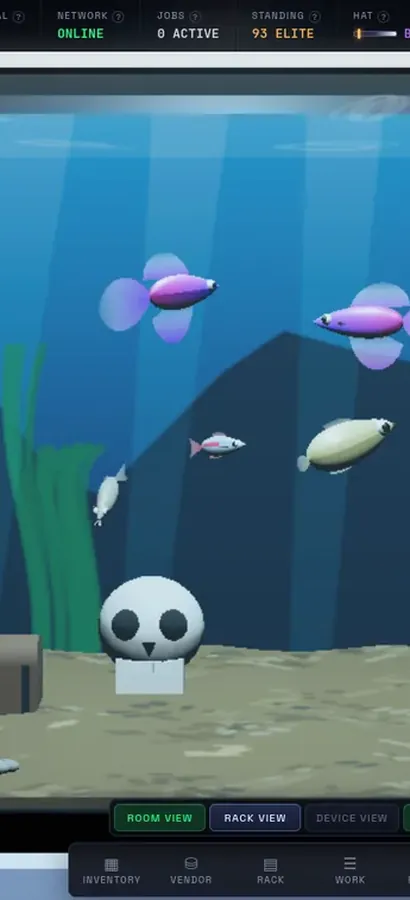
Now in 3D.
Silicon Pirates is a free server-rack simulator you play in your browser, and your lab is a 3D room now. Rack the hardware, run the cables, bring your network online, open every machine at the workbench, mine crypto and keep it all running. Nothing to install.
operator@rack-01:~$ rack status --all ▶ Play Silicon Pirates freeDesktop & mobile · free accountOur own game, not a sponsored ad. What is Silicon Pirates? →
How it works
Upload
Drop in a photo or video — it never leaves your browser.
Pixel Art or Hide Faces
Make retro pixel art, or pixelate faces for privacy.
Tune it
Set pixel size & palette, or auto-detect / draw over faces.
Download
Save your result as PNG (or animated GIF for video).
Why Pixelateme
100% private
Everything runs on your device — no uploads, no accounts.
Hide faces fast
Auto-detect faces or draw boxes to pixelate people & objects.
Retro palettes
Gameboy, NES & CGA looks with optional dithering.
Video → pixel GIF
Turn clips into animated pixel art with adjustable FPS.
How to pixelate a video
- Drop your clip in above — MP4, WebM or anything else your browser can play, up to 15 MB.
- Set the pixel size. Video hides detail better than a still does, so go finer than you would on a photo — 16–32px usually reads well.
- Pick a palette. Full colour, or Game Boy / NES / CGA for a period-correct look. Dithering is on by default and is worth keeping for anything with gradients.
- Choose a frame rate. The slider runs 1–30 fps. Ten is a good default: smooth enough to read, small enough to actually post.
- Download. The clip renders to an animated GIF.
Use Play, Pause and the scrub bar to check the effect on a specific moment before you commit to a render.
Frame rate is really a file-size dial
An animated GIF stores every frame as a full image, so doubling the frame rate roughly doubles the file. Thirty fps on a ten-second clip produces something no chat app will accept. Because pixelation already throws away the fine detail that makes motion look smooth, 8–12 fps almost always looks right — and a heavily pixelated GIF compresses far better than a sharp one, since large flat blocks of identical colour are exactly what the GIF format is good at. Coarser pixels mean a smaller file, not a bigger one.
What this does and does not do
This pixelates the entire frame, evenly, for the whole clip. That is what you want for a retro or lo-fi look, and it does hide everything in the shot — but it is not face tracking. There is no automatic follow-the-face blur that pixelates one moving person and leaves the rest of the video sharp; doing that properly needs per-frame detection and a real video editor.
If you only need one moment from the video censored, the practical route is to take a screenshot of that frame and run it through the face tool, which does auto-detect faces and pixelate only those areas. And if you want the whole clip stylised rather than censored, that is exactly what this page is for.
Your video never leaves your browser
Uploading a video to a stranger's server to make it less identifiable has always been backwards. Here the clip is decoded and rendered locally by your own browser — nothing is transmitted, nothing is stored, and there is no processing queue to wait in. The trade is that very long or very large clips are limited by your device rather than by a server farm, which is why the ceiling is 15 MB. Trim first, pixelate second.
Frequently asked questions
How do I pixelate a video online?
Drop the clip into the box above, set the pixel size, palette and frame rate, then click Download. The pixelated version saves as an animated GIF. Nothing is uploaded — it renders in your browser.
What video formats and sizes are supported?
Anything your browser can play — typically MP4, WebM and MOV — up to 15 MB. Trim a long clip before dropping it in.
What do I get back, a video or a GIF?
An animated GIF. It plays everywhere and posts anywhere, at the cost of a larger file than a real video codec would produce.
What frame rate should I choose?
Around 8–12 fps. GIF stores every frame in full, so a higher rate mostly buys you a much bigger file. Pixelated footage reads fine at a low frame rate.
Can it blur or pixelate just a face in a video?
No — it pixelates the whole frame evenly. Automatic face tracking across a moving video needs a real video editor. For a single frame, screenshot it and use the face tool, which pixelates only the faces.
Why is my GIF so large?
Lower the frame rate first, then shorten the clip. Counter-intuitively, a coarser pixel size also shrinks the file, because large flat blocks of one colour compress extremely well in GIF.
Is the video uploaded anywhere?
No. The clip is decoded and rendered entirely in your browser. It is never transmitted or stored on a server.
People also ask
Can a pixelated image be un-pixelated or reversed?
Not in the sense people usually mean. Pixelation throws the original pixels away, so there is nothing left to restore. What the “unpixelate with AI” tools do is generate a plausible-looking face or texture that would pixelate down to the same blocks — an invention, not a recovery. A widely reported 2020 face-upscaling demo made the point badly and publicly when it turned a pixelated photo of a well-known Black politician into a white man. Treat their output as a guess, never as evidence of what was underneath.
Do free online pixelate tools upload and keep my photos?
Most of them do — they receive your file, process it on their servers and hand back a link, which means a copy exists on someone else’s machine, usually under terms that let them retain it. That is a poor trade when the reason you are pixelating is that the image shows something private. Pixelateme is built the other way round: the work is done by your own browser with the Canvas API, so nothing is transmitted. If you want to prove it, load this page, switch off your network, and it still works.
Does pixelating an image reduce its quality or file size?
It destroys detail permanently — that is the point — but the exported file is not necessarily smaller. The pixel dimensions stay the same; only the content becomes blockier. As it happens, large flat areas of a single colour compress very well, so a heavily pixelated PNG often ends up smaller than the original. Keep your untouched original, because you cannot undo it from the export.
What is the difference between pixelate, blur and a mosaic?
“Pixelate” and “mosaic” are the same effect under two names: the area is divided into a grid and each cell is flattened to one average colour, giving hard-edged blocks. Blur instead smears each pixel into its neighbours, producing a soft smudge with no edges. Pixelation looks deliberate and is easier to judge at a glance, which is why it is the default for censoring faces; blur looks gentler and less like a redaction. Neither is safe for text.
Is there a catch — a watermark, a sign-up, or a paid tier?
No. Every feature is free, there is no account, nothing is watermarked, and there is no resolution or export limit beyond the 15 MB input cap. The site is paid for by the ads you see, and a $5 donation turns those off for a year. That is the entire business model.